
instagram and messenger export guide
How to export your Instagram and Messenger messages.
Instagram and Messenger both export through Meta Accounts Center, so one set of steps covers both. The request takes a minute; the download arrives by email, usually within a day.
Read in your browser — we never see your messages.
Settings that matter
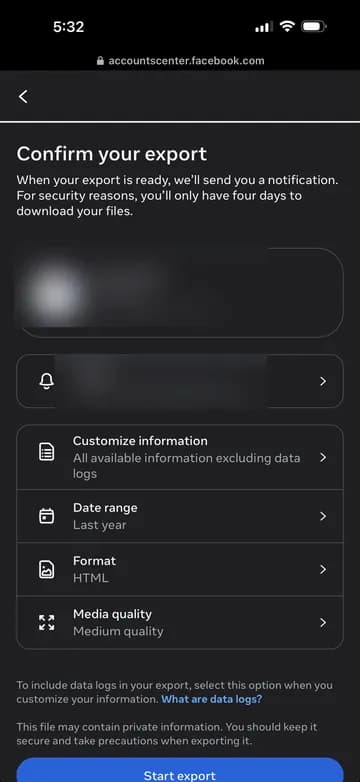
Three choices decide whether the export works: include only Messages, set the date range to All time, and set the format to JSON. The defaults for the last two are different, so check them before you tap Start export.
Step by step
Arrives by email — usually within a day
- 1
On Instagram: tap ≡ on your profile page. On Messenger: tap the menu at the bottom right. Then tap "Accounts Center".
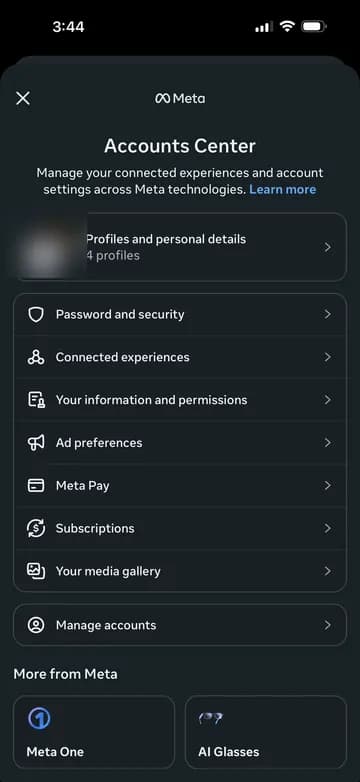
- 2
Tap "Your information and permissions".
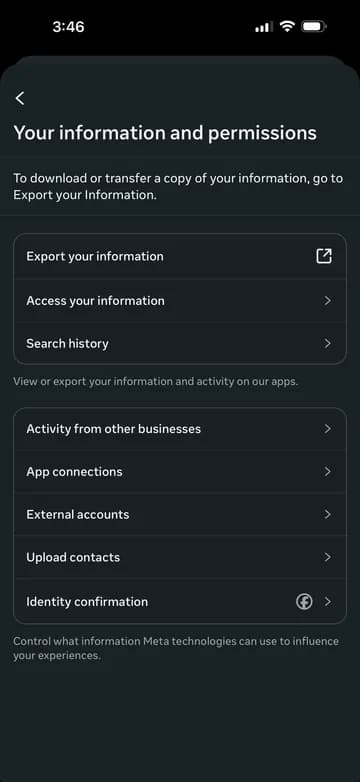
- 3
Tap "Export your information", then "Create export".
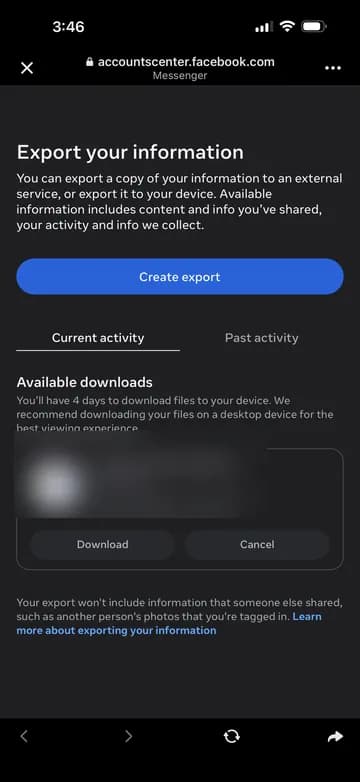
- 4
Choose "Export to device".
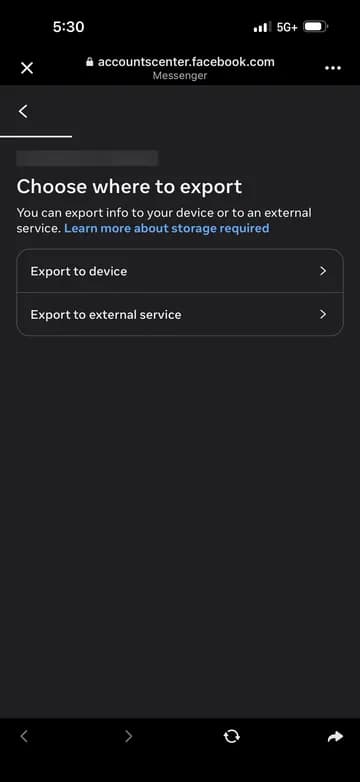
- 5
On the export page, tap "Customize information".
- 6
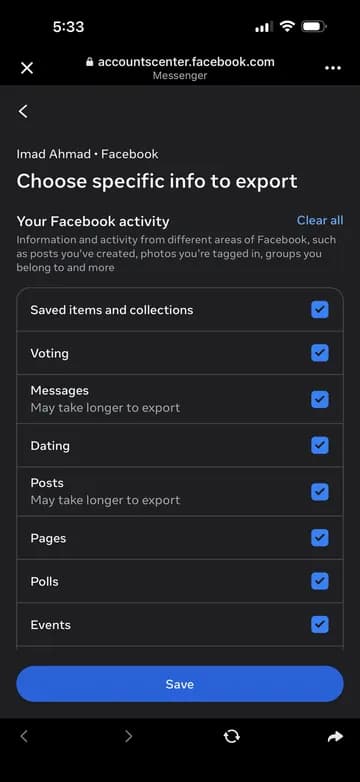
Clear everything except "Messages", then save.
- 7
Back on the export page, set Date range to "All time" and Format to "JSON" (both default to something else), then tap "Start export".
Both apps use the same Accounts Center flow — this emails you a download link once it's ready, so kick it off first if you're doing multiple apps. When it arrives it may be split across several files rather than one — that's normal for a big inbox, and you can drop all of them in together below.
When the file arrives
Meta emails you a link. A large inbox may arrive split across several files, which is normal. You can drop every part into LoveDash together.
Nothing is uploaded: the files are read inside your browser.
Common questions
How do I export Instagram or Messenger messages?
Go to Accounts Center, then Your information and permissions, then Export your information. Choose Export to device, keep only Messages, set the date range to All time and the format to JSON. Meta emails you a download link, usually within a day.
Is my chat private?
Yes. Your export is read and analyzed entirely inside your browser tab — the messages never get uploaded, and nobody (not us, not an AI) reads them. If you save a letter, only the aggregate numbers (counts, times, top words) and your opening line are stored, never your conversation.
Which apps does it work with?
WhatsApp, Instagram and Facebook Messenger. You can add more than one export and LoveDash merges them into a single timeline for the two of you.