
whatsapp export guide
How to export a WhatsApp chat.
WhatsApp can save any chat as a text file in about ten seconds. Here is how, on iPhone and on Android, and what to do with the file afterwards.
Read in your browser — we never see your messages.
Why "without media"
Exporting with photos and videos makes the file much bigger and is not needed to analyze a conversation. Without media you get the messages and their timestamps, which is everything LoveDash reads.
Step by step
Takes about 10 seconds
- 1
Open your chat with them.
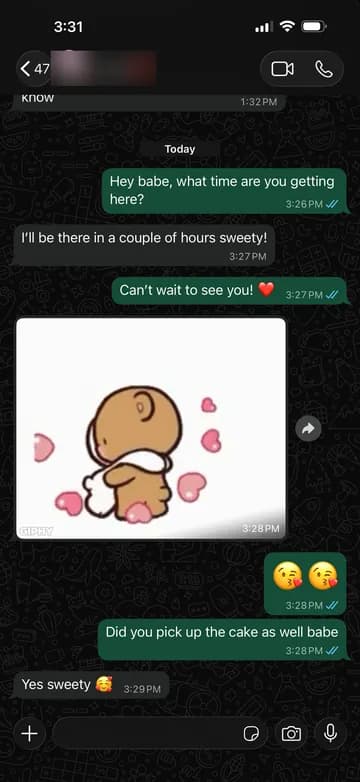
- 2
Tap their name at the top, scroll down, and tap "Export Chat".
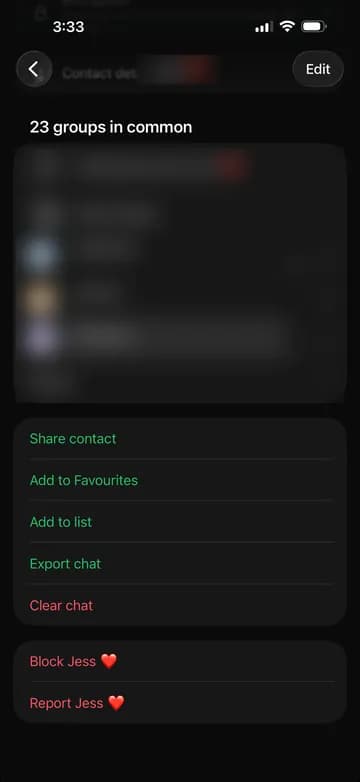
- 3
Choose "Without Media" — it's smaller and it's all we need.
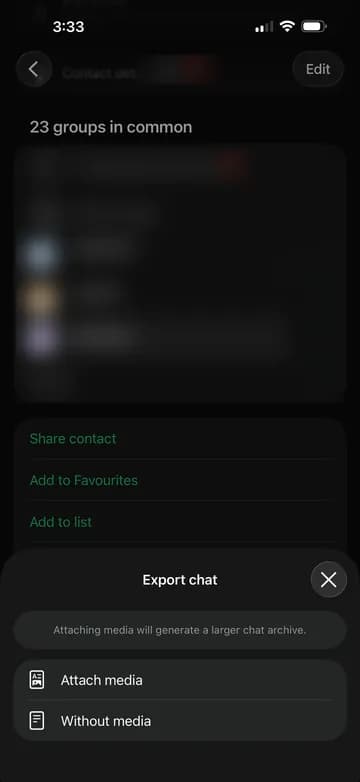
- 4
Save it to Files, then drop it below.
Works straight from your phone — no waiting, nothing to request.
On Android the menu is slightly different: open the chat, tap the three-dot menu at the top right, choose More, then Export chat, and pick Without media.
What to do with the file
Drop it into LoveDash. The file is read in your browser and not uploaded, so exporting does not put your conversation in anyone else’s hands.
If your chat is split between WhatsApp and Instagram or Messenger, export those too and add them together.
Common questions
How do I export a WhatsApp chat?
Open the chat, tap the contact name at the top, scroll down and tap Export Chat, then choose Without Media. Save the file and drop it into LoveDash. It takes about ten seconds.
Is my chat private?
Yes. Your export is read and analyzed entirely inside your browser tab — the messages never get uploaded, and nobody (not us, not an AI) reads them. If you save a letter, only the aggregate numbers (counts, times, top words) and your opening line are stored, never your conversation.
Which apps does it work with?
WhatsApp, Instagram and Facebook Messenger. You can add more than one export and LoveDash merges them into a single timeline for the two of you.